Picture to build

Image to Minecraft build: let one picture guide a 3D schematic

Describe the build you want and attach a single reference picture. Its composition, shapes, colors and landscape guide our AI as it composes a full Minecraft structure on shaped terrain. You get a 3D preview with real blocks, a .schem for WorldEdit and a Java world.

Free to start · No credit card

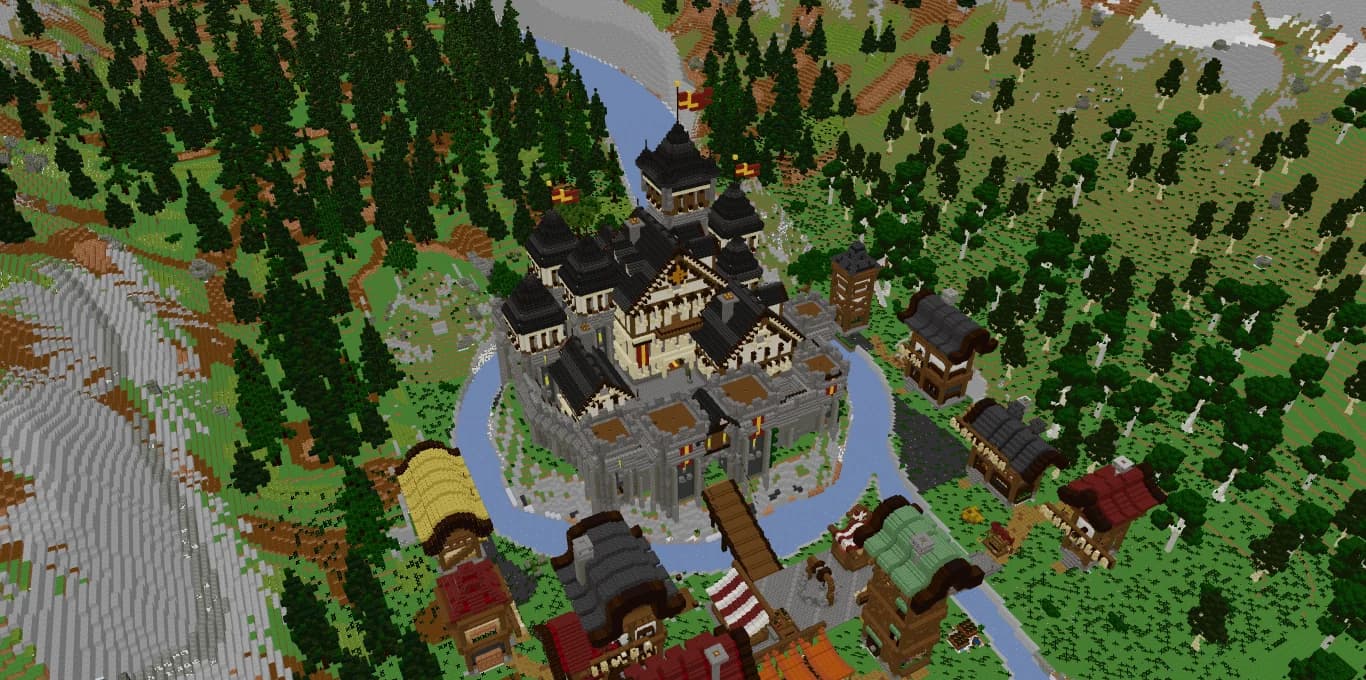
Val des Cimes: a medieval Minecraft castle with a moat and a village in a forested valley, built with Spaleforce and rendered in real Minecraft blocks

A 3D build, not pixel art

The picture inspires a volume with walls, roofs and floors, not a flat wall of colored blocks.

Reads the whole scene

Silhouette, colors, materials and surroundings all feed the build, including trees, rocks and terrain.

Prompt plus picture

A written description of 20 to 4,000 characters is always required; the JPG, PNG or WebP image (up to 10 MB) adds visual direction.

Straight to .schem

Check the result in 3D, then download a Sponge v3 schematic that WorldEdit and FAWE can paste.

What converting an image to a Minecraft build really means

Many tools that promise to turn a picture into Minecraft produce map art: the image is resampled into a flat grid of colored blocks. That is useful for a mural, but it is not a building. Spaleforce does something different. The AI uses the picture as a visual brief, a castle, a chapel, a cabin, and composes a scene in three dimensions that follows it.

The result has thickness, floors, roofs and a landscape around it. Trees, rocks, vegetation and paths dress the scene, so the picture becomes a place rather than a poster. Rooms can be furnished when you ask for it in the prompt.

Which pictures work for a picture to Minecraft build

Almost any image with one clear architectural subject can serve as a reference. These kinds of pictures give the best starting points:

Images that are mostly people, close-ups of a texture or dense city skylines give the AI little to build from. When a picture shows ten buildings, crop it to the one you want.

  • Concept art: fantasy castles, villages and temples drawn with clear shapes and a readable palette.
  • Photos of monuments: cathedrals, lighthouses, towers, historic houses shot from the street.
  • Screenshots from other games: a keep, a tavern or a ruin you liked while playing something else.
  • Sketches: a clean drawing can work when the outline and roof lines are easy to read.

How the AI uses your photo before placing blocks

The picture is read together with your prompt. The AI takes from it the overall composition, the main volumes, the dominant colors and the kind of landscape, then plans a scene that respects them: which buildings, which terrain, which materials.

Colors in the picture are matched to real Minecraft blocks with a coherent palette, so a gray slate roof becomes dark tiles, not a random mix. The ground is shaped first, the architecture is placed on it, and nature fills in the rest. Every block state is checked before the files are written.

Because the image guides rather than dictates, your prompt matters as much as the picture. Name the subject, the style and the details you care about; the image then fills in what words describe badly, such as a silhouette or a color mood.

Tips for a reference picture that converts well

A few choices when picking the image make a visible difference in the result:

If you do not have a suitable picture, you can describe the scene in words only. The prompts below are written for that case.

  • Show the whole building, roof included. Cropped towers give the AI nothing to go on.
  • Prefer a three-quarter view. Seeing two faces at once tells the AI much more about depth than a flat front view.
  • Pick even lighting. Deep shadows and night shots hide materials and window lines.
  • Avoid heavy text, logos and watermarks over the subject.
  • Use images you have the right to use, especially if the build ends up on a public server.

Limits of photo to schematic conversion

A single picture only shows one side of a building, and the AI does not rebuild it block for block. It composes a Minecraft interpretation inspired by the view: same mood, similar shapes and colors. Do not expect a faithful replica of a real landmark, including its hidden sides.

Minecraft is a block grid, so very thin details such as fine tracery, cables or delicate railings are simplified. Materials are limited to real Minecraft blocks, so an unusual stone or a glass facade is translated into the closest palette. The generator is also an experimental first version, so check the result in 3D and use a modification if something is off.

From your image to a schematic in your world

Once the build is ready, inspect it in the 3D viewer, which uses the real Minecraft block models, by orbiting or exploring in first person. Then download the .schem file (Sponge v3) and paste it with WorldEdit or FastAsyncWorldEdit using //schem load followed by //paste. A zipped Java world is available too.

Image-guided generation is part of Pro (€20 per month, 1 creation and 1 modification per month) and Ultimate (€50 per month, 5 of each). Each action uses 20 of the plan's daily AI credits, returned with the monthly slot if the job fails. If your starting point is a 3D model rather than a picture, our free OBJ to .schem converter is the better tool.

How it works

  1. 1

    Choose one clear picture

    Concept art, a monument photo, a game screenshot or a clean sketch, with the whole building visible.

  2. 2

    Write the prompt and attach it

    Describe the subject and style, then add the image. The AI plans the terrain, architecture and decor from both.

  3. 3

    Review the result in 3D

    Orbit around the build or walk through it in first person, and request a modification if needed.

  4. 4

    Download the .schem

    Paste it in your world with WorldEdit or FAWE.

No picture at hand? Describe the scene instead

Lighthouse on a cliff
A white and red striped lighthouse on a rocky cliff above the sea, with a keeper's cottage in stone and spruce, a furnished kitchen, a winding path and lanterns.
Gothic chapel
A small gothic chapel in stone bricks with pointed windows, a tall bell tower, dark slate roofs, pews and candles inside, and a graveyard with old trees around it.
Mountain tavern
A two-story timber-framed tavern on a mountain road, with a stone ground floor, a bar and tables inside, rooms upstairs, barrels outside and pine trees behind.
Japanese-style pagoda
A five-tier pagoda in dark oak and red accents with curved roofs, a stone base, a garden with a pond, cherry trees and lanterns along the path.

Frequently asked questions

Can AI turn a picture into a Minecraft build?

It can use one as a guide. On Spaleforce you write a prompt, attach a reference image, and the AI composes a build with real Minecraft blocks that follows the picture's composition, shapes, colors and landscape. You get a .schem file and a Java world.

Is this the same as a pixel art converter?

No. Pixel art converters flatten an image into a wall of blocks. Here the picture guides a build with depth, floors, roofs and terrain.

What kind of images give the best results?

Pictures with one clear building, fully visible, in even light. Concept art, monument photos, screenshots from other games and clean sketches all work well. JPG, PNG and WebP are accepted, up to 10 MB.

Will the build match the picture exactly?

No. The result is an interpretation inspired by the image, not a copy. Sides the picture does not show, and fine details, are composed to fit the style rather than reproduced.

Is it free to convert an image to a Minecraft build?

No. Build generation is included in Pro (€20 per month, 1 creation and 1 modification per month) and Ultimate (€50 per month, 5 of each). Each action uses 20 daily AI credits from the plan, with no credits to buy separately.

Can I get the result as a schematic?

Yes. The build downloads as a .schem file in the Sponge v3 format, which you paste with WorldEdit or FastAsyncWorldEdit.

Turn your reference image into a build

Pick the picture you keep coming back to, describe what you want, and let the AI compose it in blocks. Preview it in 3D, then paste the .schem into your world.

Open the generator

Updated September 23, 2026